Image workflowsUpdated Oct 20, 2026

AI Halloween Photo Editor

Not every Halloween idea needs a full costume. This workflow changes the light, makeup, background and atmosphere of a photo you already like, while keeping the person recognizable.

Input
Photo + prompt
Output
Image
Model fit
Nano Banana 2
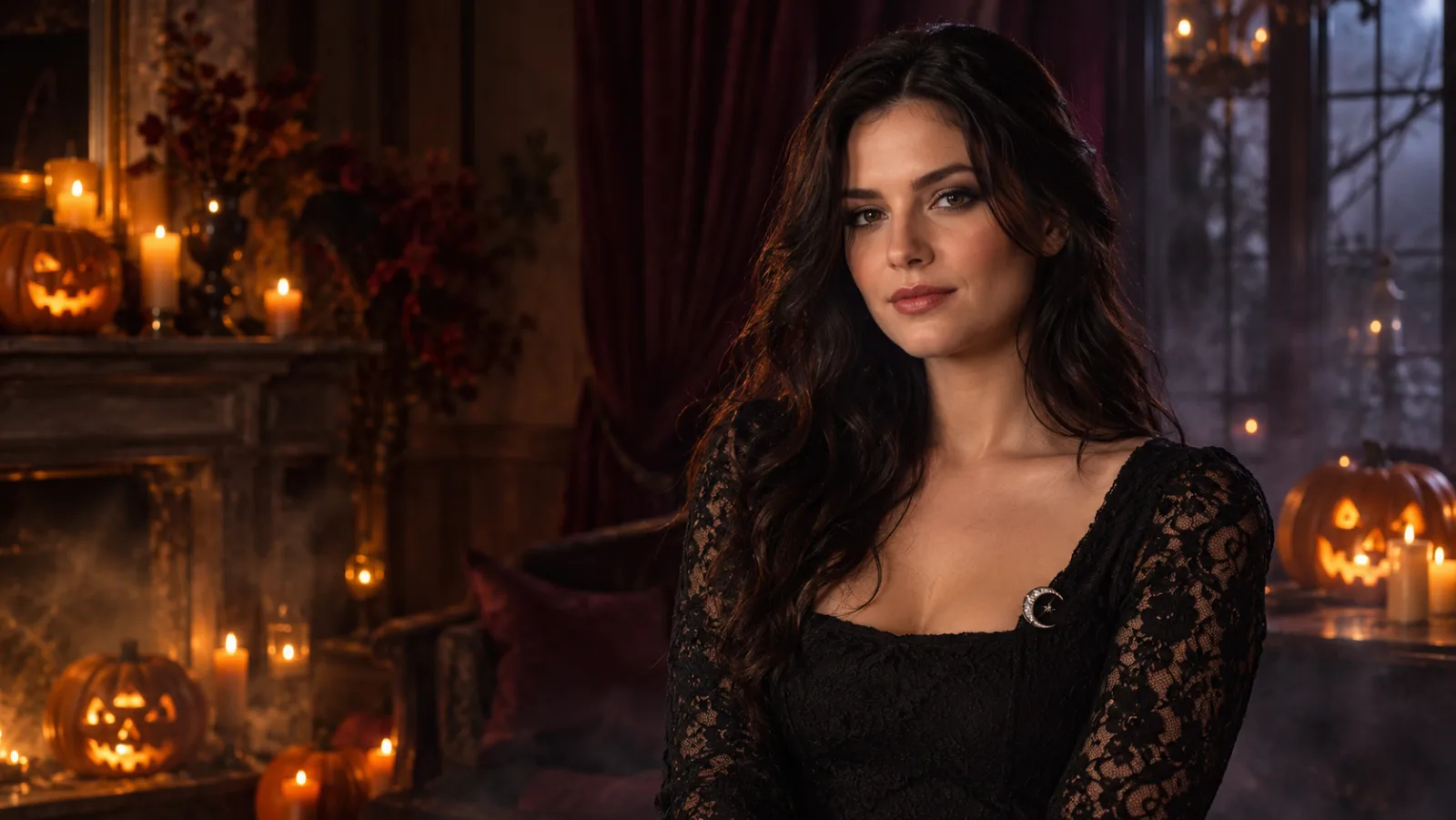
A moody Halloween portrait with warm pumpkin light and dark lace, showing the kind of background and makeup edit an AI photo editor can produce.

Quick answer

Use image-to-image, describe the smallest change that tells the story, and keep the face, pose and body proportions locked. Background, light and colour do more for a Halloween mood than a long list of spooky objects.

Best for

  • Turning a normal portrait into a Halloween post
  • Changing a room into a haunted-house scene
  • Adding theatrical makeup without losing skin texture
01

Edit the photo, not the person

A Halloween edit fails when the face stops looking like the person in the source. Start by naming what must not change: facial identity, age, skin tone, body proportions and pose. Then describe the edit. If you reverse that order, the model may treat the face as part of the costume.

Keep the crop consistent. A tight headshot is a poor source for a full-body costume edit because the model has to invent most of the body. Use a portrait crop when you are changing makeup and light; use a fuller photo when you are changing the scene.

02

Choose the smallest change that sells the scene

A warm lamp, a darker wall and a few carved pumpkins can be enough. The viewer reads Halloween from palette and light before they count props. Ask for amber practical lights, deep shadows, cool moonlight or fog, then let the environment do the work.

If the original background is busy, replace it instead of adding more objects. A clean Victorian parlour, a foggy garden path or a dark studio backdrop gives the subject room to read. The best edit often removes things.

03

Makeup and atmosphere without plastic skin

Use makeup language the model understands: smoky eyes, deep berry lips, silver highlight, subtle fake blood, cracked porcelain effect. Add “natural skin texture” and “visible pores” when the result looks airbrushed. For a creature look, ask for prosthetic pieces rather than a fully changed face.

Horror lighting needs contrast, not just darkness. A single warm source against a cool ambient fill creates depth. Avoid stacking five light colours; the face turns muddy and the costume loses detail.

04

A repeatable edit order

First pass: identity and crop. Second pass: background and light. Third pass: makeup and small props. Fourth pass: texture and colour grade. Stop between passes and inspect hands, jewellery, hair edges and the line where the subject meets the background.

When a result is close, save it and make one targeted correction. If the face drifted, lower the amount of change and repeat the identity lock. If the background is wrong but the face is right, keep the face and replace only the environment.

Prompt recipes

AI Halloween Photo Editor

Open the image editor

Haunted Living Room

A background-led edit that keeps the subject almost untouched.

Use the uploaded portrait as the exact identity reference. Keep the subject’s face, skin tone, age, body proportions and pose unchanged. Replace only the background and lighting: transform the room into an elegant haunted Victorian parlour with dark burgundy drapes, carved pumpkins, warm candlelight and a thin layer of floor haze. Add subtle smoky eye makeup and a deep berry lip while preserving natural skin texture and visible pores. Cinematic amber key light from the left, cool shadow fill from the right, photorealistic editorial portrait. Do not change the person’s identity, add people, distort hands, add text, logos or watermarks.
Use this prompt

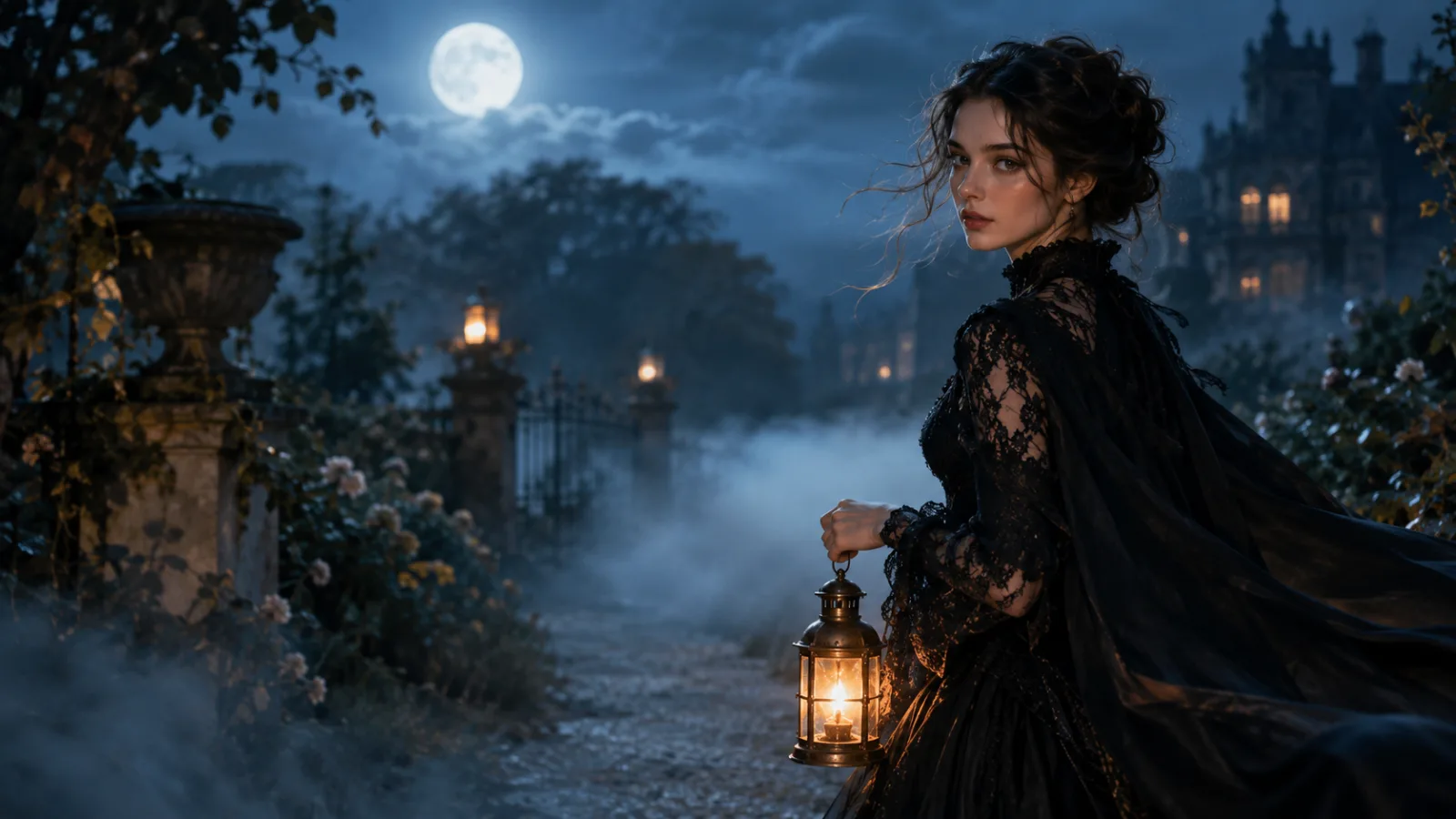
Moonlit Garden

Good for a quiet, atmospheric result rather than a jump-scare image.

Edit the uploaded photo into a moonlit garden portrait. Preserve the subject’s recognizable face, natural skin, age and pose. Change the environment to an old stone garden at night with soft fog, dark ivy, a distant iron gate and one warm lantern. Use cool blue moonlight as the main light and a subtle warm rim light on the hair and shoulders. Add delicate silver jewellery and a faint moonlit sheen to the skin without changing the face. Photorealistic, cinematic, realistic fabric and hair detail. Avoid extra people, changed identity, plastic skin, text and watermarks.
Use this prompt

Vintage Horror Film

A style edit that changes grade and texture more than content.

Turn the uploaded portrait into a 1970s horror-film still while keeping the person fully recognizable. Preserve facial identity, skin tone, age and pose. Add soft theatrical makeup, slightly smudged eyeliner and a dark velvet collar. Use warm tungsten light, gentle film grain, halation around highlights and a muted teal-and-amber grade. Background: a shadowed wood-panelled room with one practical lamp. Keep anatomy natural and fabric believable. No text, no logos, no watermark, no extra characters, no modern smartphone look.
Use this prompt

Model fit

ModelRouteUse it when
Nano Banana 2KIEFast portrait edits, identity preservation, and simple multi-reference compositions.
GPT Image 2KIEDetailed costume briefs, product surfaces, text-heavy graphics, and edits that must follow a long list of constraints.
Nano Banana ProKIEHigher-fidelity portraits, fabric detail, and scene continuity when the result needs a final polish.
SeeDream 5.0 LiteKIELow-cost drafts, clean lighting, and straightforward background or outfit changes.

FAQ

  1. 1

    Can I edit a photo without changing the face?

    Yes, that is the intended use of image-to-image. Put the identity lock first, describe the background and lighting second, and review the face before anything else. A smaller edit generally preserves identity better than a full costume transformation.

  2. 2

    Which model is best for Halloween photo edits?

    Start with Nano Banana 2 for a fast identity-preserving edit, try GPT Image 2 when the prompt has many constraints, and use FLUX 2 Pro when product-like texture or a premium editorial finish matters. SeeDream 5.0 Lite is a lower-cost draft option.

  3. 3

    Why did the background change but the makeup did not?

    The model may prioritize the largest visual change. Make the makeup instruction more specific, remove competing background details, or split the work into two passes: background first, then makeup.

  4. 4

    Do I need a paid plan to edit a photo?

    The image editor uses purchased credits. There is no unlimited free tier. Review the pricing page for the current credit packs and subscription options before you start.

  5. 5

    Can I remove a person or object from the background?

    Describe the removal explicitly and state what should replace it. Simple object removal works best on clean backgrounds. Complex scenes with many overlapping edges may need several passes or a manual retouch afterward.

Related workflows

Open the Halloween photo editor

Start in image-to-image mode, upload one photo, and use a prompt that changes the scene without changing the person.