Video workflowsUpdated Oct 20, 2026

AI Black Friday Video Generator

A product video does not need a full studio sequence. One clean still, one camera move and one lighting idea can produce a five-second ad that feels intentional.

Input
Image + prompt
Output
Short video
Model fit
Seedance 2.0
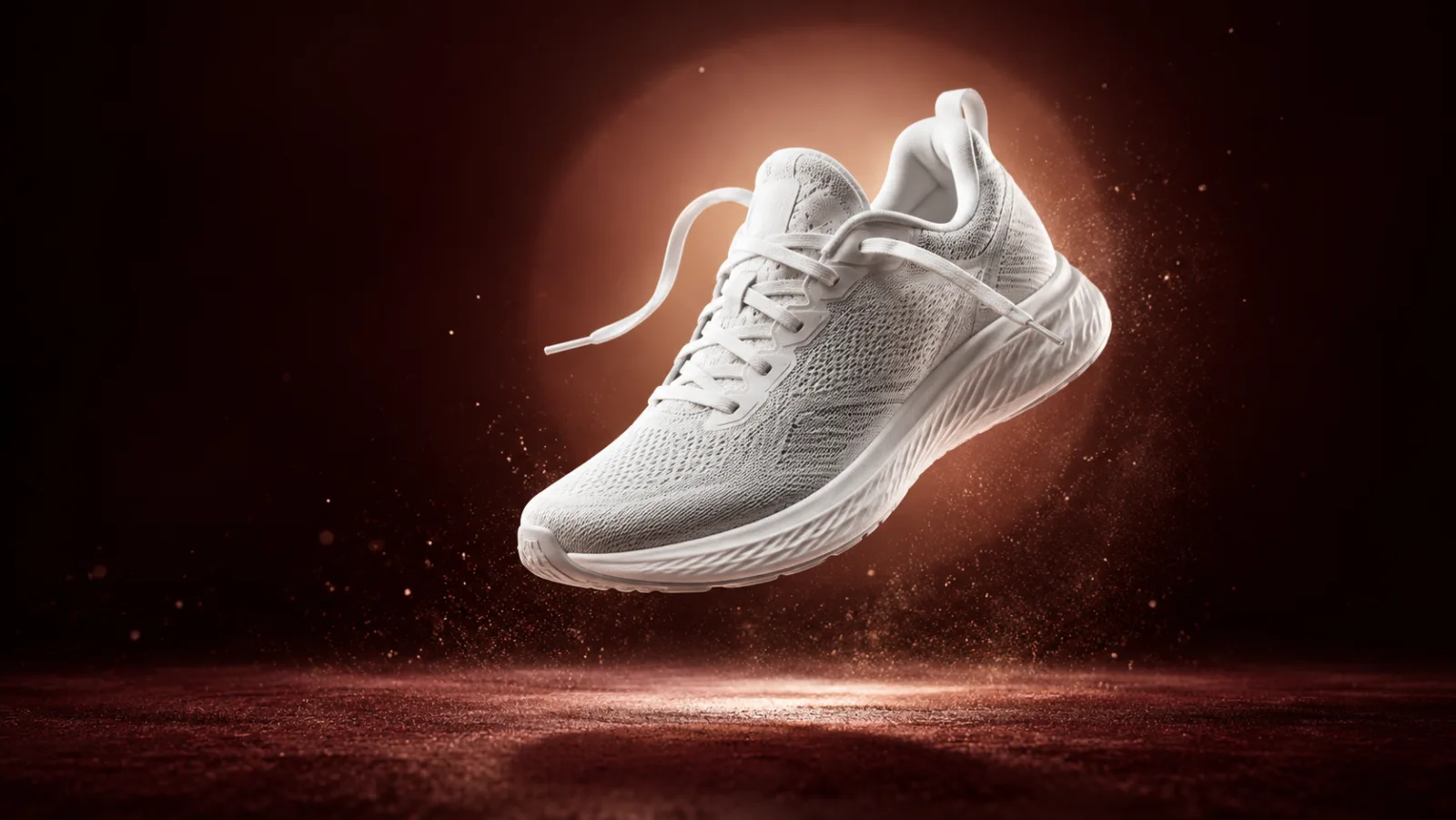
An unbranded white sneaker suspended above a dark burgundy stage under a warm spotlight, with fine dust particles.

Quick answer

Use image-to-video with a clean product still. Keep the product locked, ask for one camera move, and add atmosphere with light or particles rather than changing the set. Five seconds is the safest first test.

Best for

  • Short product teasers for paid social
  • Animating a product still for email or landing pages
  • Testing a campaign mood before a full shoot
01

Lock the product geometry first

The model should animate the camera, not redesign the product. State that the source image is the exact product reference and that shape, proportions, materials, labels and colours must stay the same. If the product has a logo or readable text, keep it out of the generation and overlay the real artwork later.

A clean still with a simple background gives the model fewer unrelated edges to warp. If the source image is already busy, simplify it in the image editor before animating.

02

Use one camera move

A slow push-in, a gentle orbit, or a locked camera with moving light is enough. Two moves can work if they are related, such as a push-in with a slight rise. A push-in plus a spin plus a background change is a sequence, not a five-second shot.

Write the camera move in plain language and keep it consistent. “Slow, smooth push-in from a low angle” is more useful than “cinematic camera movement”.

03

Create atmosphere without changing the set

Particles, a moving spotlight, a soft reflection or a slowly rotating pedestal can create motion without asking the model to rebuild the scene. Use these when the product itself should stay still.

Keep the lighting direction consistent. A spotlight sweeping across the product is a deliberate change; a random colour shift is a continuity error. If you want a colour change, describe it as a gradual transition.

04

Design for the placement

A vertical 9:16 clip for Stories and Reels needs different margins from a 16:9 landing-page hero. Decide the placement before generation. Leave room for a real price, badge or caption that you will add afterward.

Review the first and last frame. The product should still be recognizable at both ends. If the label warps or the shape changes, reduce the motion and shorten the clip before spending more credits.

Prompt recipes

AI Black Friday Video Generator

Open the video workspace

Sneaker Spotlight

One camera move plus one light move, with the product locked.

Use the provided product image as the exact visual reference. Keep the sneaker’s shape, sole, laces, material and colour unchanged. Create a five-second premium product clip on a dark burgundy stage. The camera performs a slow, smooth push-in from a low angle while a warm spotlight gently sweeps across the shoe and fine dust particles drift in the air. Keep the background and lighting consistent. No text, no logos, no watermark, no people, no sudden cuts, no product redesign.
Use this prompt

Skincare Turntable

A pedestal move gives motion while the camera and product stay stable.

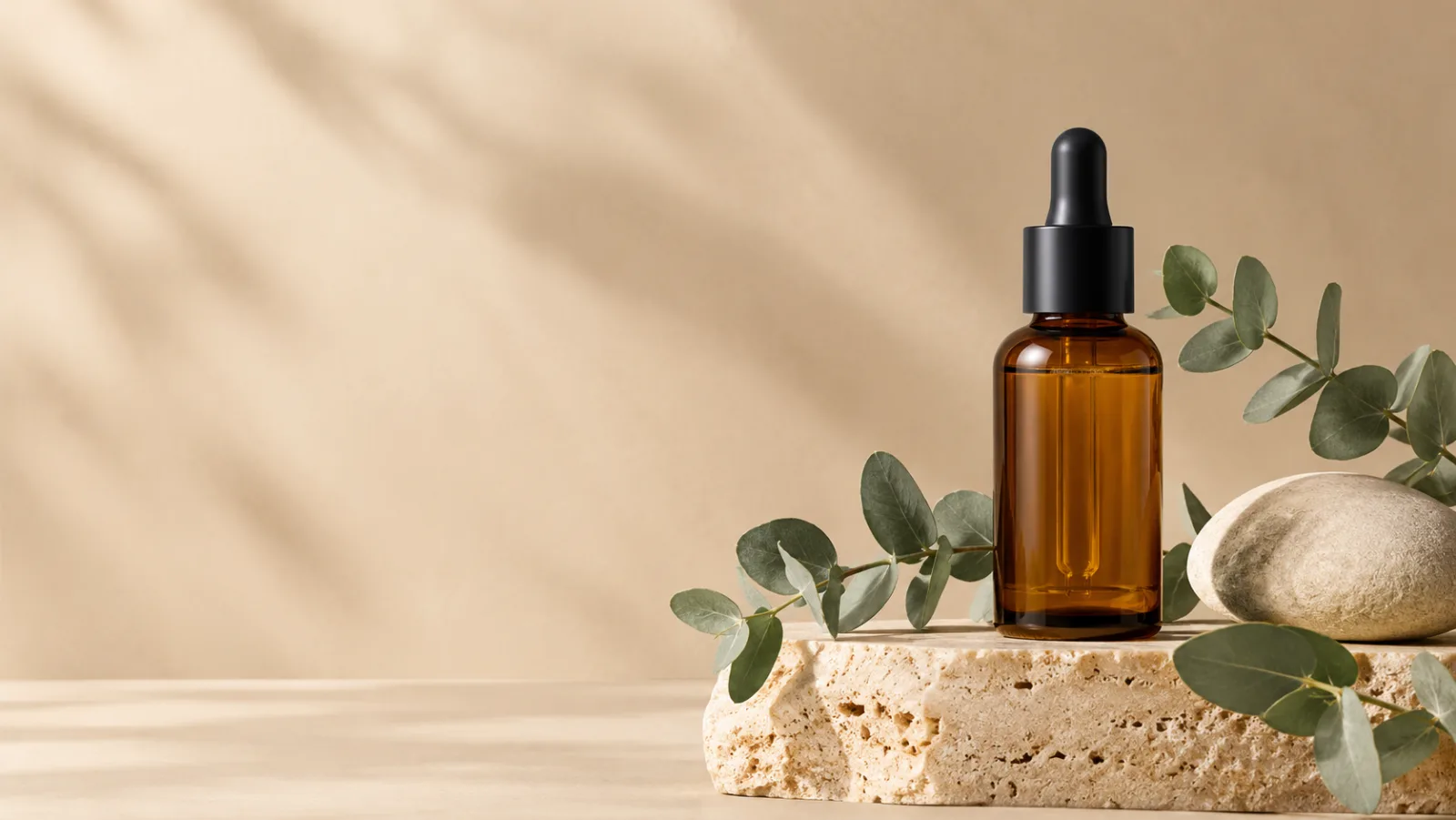
Using the provided skincare bottle image as the exact product reference, create a five-second commercial clip. Preserve the bottle shape, amber glass, dropper cap and proportions. The bottle stands on a slowly rotating travertine pedestal against a warm cream backdrop. Soft diffused light moves gently across the glass, creating realistic highlights and a subtle shadow. The camera stays locked. No text, no logos, no watermark, no people, no label changes, no sudden cuts.
Use this prompt

Model fit

ModelRouteUse it when
Seedance 2.0KIE primary, with FAL and Replicate fallback when configuredShort cinematic motion from a prompt, a first frame, or a reference set, with stable identity and camera movement.

FAQ

  1. 1

    Can I animate a product photo into a video ad?

    Yes. Use image-to-video with a clean product still, lock the product geometry, and ask for one camera or lighting move. Review the label and shape before using the clip in a paid campaign.

  2. 2

    Which model is used for product video?

    The video workspace uses Seedance 2.0, routed through KIE by default with FAL and Replicate fallback when configured. Duration and resolution determine the credit cost.

  3. 3

    Can the AI add a real Black Friday price?

    Do not rely on generated text for prices or legal claims. Add the real offer as a designed overlay or page copy after the clip is approved.

  4. 4

    Why does the product change shape?

    The model may be treating the product as a creative subject rather than a fixed object. Repeat the product-lock sentence, simplify the background, and reduce the camera movement.

  5. 5

    How many variants should I test?

    Start with one clean clip and one alternate mood. Test them against the same offer and audience. More variants only help when the production quality is stable.

Related workflows

Animate a product still for Black Friday

Open image-to-video, lock the product, and choose one camera move for a five-second clip.